System
System =
Software+Hardware: Standalone,
Network, Online.
Acronym: S = SH:SNO (pronounced Shh
SNOH).
A computer system consists of the
combination of software and hardware
needed to perform tasks. Whenever you
work with computers you can be certain
of one thing--for anything to occur,
you must have both software and
hardware. Either alone does nothing by
itself. For every aspect of computing,
the following questions are relevant:
- What hardware is needed to make it
happen?
- What software is needed to tell
the hardware what to do?
Although many combinations of
software and hardware exist, I've
divided them into three groups for our
study: Standalone, Network, and Online,
followed by discussions of the System
Cycle, System Purchase, System
Operations, and System Issues.
|
Standalone
System
Software+Hardware that
consists of a SINGLE computer with
peripherals and software.
This is typically a desktop,
laptop, or handheld computer. |
 |
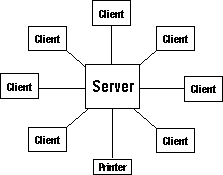
Network
System
Software+Hardware that
connects computers and SHARES
files and peripherals.
This is typically a central server
computer with client
computers and peripherals cabled
to it. |
 |
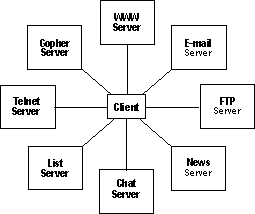
Online
System
Software+Hardware that
lets a computer remotely ACCESS
other computers.
This is typically a client
computer connecting to a variety
of servers, usually via modem
through the network of all
networks--the Internet--to
access vast storehouses of
information and communicate with
other online users. |
 |
System
Cycle
Test,
Boot, Load, Enter, Process, Output,
Store
Acronym: SC = TBLE-POS
(pronounced TAA-bul pawss). |
| If
you recall, a computer is a
machine that Inputs, Processes,
Outputs and Stores instructions
and data. To describe the System
Cycle, we'll expand the Input
phase into its component parts:
Test, Boot, Load, and Enter. |
|
|
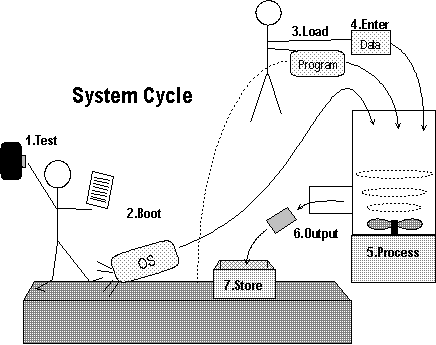
Input
1. ROM instructions TEST
all circuits to ensure they are
working.
2. ROM instructions BOOT
the operating system programs from disk
to RAM.
3. User selects a program/command to
LOAD
from disk to RAM.
4. User ENTERS
data into RAM.
Process, Output, Store
5. CPU PROCESSES
data as
instructed by program/command.
6. User OUTPUTS
data to
monitor or printer.
7. User STORES
the processed data from RAM to disk.
|
|
 |
Analogy: Compare the System Cycle to a
factory that converts raw
materials into finished
products. Imagine Mr. ROM is the
factory foreman. When you turn
on the power to the factory, he
looks to his built-in
instruction sheet and starts the
production cycle. |
|
Input
1. Mr. ROM reads his instruction
sheet and pushes a button to check
(Test) all factory circuits.
2. Mr. ROM kicks (Boot) the OS
program from the loading dock/disk to
the RAM vat.
3. Ms. User carries (Load) a program
from the loading dock/disk to the RAM
vat.
4. Ms. User dumps (Enter) raw
materials/data into the RAM vat.
Process, Output, Store
5. The whirling blade/CPU blends
(Process) the raw materials.
6. The finished product is ejected
(Output) from the RAM vat.
7. The finished product is placed
(Store) in a container on the loading
dock/disk.
Observe
how the System Cycle travels full
circle, from DISK to RAM to DISK.
|
Click
here to return to the System List
System
Purchase
Needs, Software, Hardware, Budget, Shop
Acronym:
SP = NSH-BS (pronounced Noosh-booss)Here's
a five-step process to follow for your
first, or next, computer purchase.
Needs
What do you need the computer
for?
By writing
down your needs first, you'll avoid
purchasing unnecessary items, and you'll
be sure to get what you do need.
Try to project your needs for 2-3 years
so that you don't prematurely outgrow
your computer system. Most systems can
be upgraded for a few years before they
become "obsolete."
Software
Which software programs satisfy
the needs you listed above?
Contrary to the way most people buy
a computer system, it's important to
decide on software before hardware. The
software you choose may require certain
types and capacities of hardware that
you may not have planned on. These
minimum requirements are usually listed
on the outside of the software
packaging. Selecting desired software
first ensures that you won't buy
inadequate or incompatible hardware.
Hardware
Which computers and peripherals
will work with the software programs you
selected above?
If you purchase a
"proprietary" computer system,
all or most of its peripherals must come
from the computer manufacturer, usually
at a premium price--but you'll be
assured that the peripheral will work as
advertised (usually!). If you purchase
an "open" computer system,
peripherals will be available from
various manufacturers and you will
benefit from competitive pricing--but
you may have to work a little harder to
get the peripheral to work.
Budget
How much money do you have to
spend on the computer system?
This is where your dreams and wishes
meet the reality of your pocketbook!
Most buyers focus on the hardware prices
alone and fail to budget for other
necessities. Don't forget about
additional software, paper, ink
cartridges, diskettes, classes, books,
and any applicable sales tax.
Shop
Comparison shop and
"test-drive" several computers
before you buy.
Read computer magazines for product
evaluations. Ask for demonstrations
showing the type of work you plan to do.
Try out the hardware and software before
you buy. In the end, realize that for
many people, buying a computer is much
like buying a car. No matter how much
you intellectually research and shop,
the computer you ultimately buy is the
one you've "fallen in love"
with. It will just feel right.
|
Click
here to return to the System List
|
System
Operations
Computer Op-Orders
Acronym: SO = COO
By following these 10 rules for
effective system operation, you can
maximize your computing productivity and
minimize your computing headaches.
I--Be Relaxed, Uncluttered, Focused,
and Flowing (RUFF)
RUFF works for any life or work
situation, but especially with
computing. There are so many commands,
options, and steps, it takes a clear,
relaxed mind, free from distracting
thoughts, to be successful.
II--Keep a Computer Notebook (KCN)
With all there is to know
about computing, no one can remember it
all. With a Computer Notebook, you can
store everything you learn in one
place—a single-source reference. Create
a tabbed divider for each software
program you use. When you figure out an
uncommon procedure, write down its steps
for future use. Log all hardware and
software changes you make and
troubleshooting you do on your computer,
so you have a history of what you did
when.
III--Read The Manual (RTM)
Take the strategic approach to learning
by reading the manual prior to
trying a new program or procedure.
Previous experience, trial & error, or
blind luck might help, but they're
generally time wasters rather than time
savers when it comes to learning.
Reading the manual may seem to slow you
down at first, but will pay huge
dividends in your ability to get the
maximum performance from your computer
and programs.
IV--Follow Instructions (FI)
Pay attention to details and
follow instructions precisely. Computers
are very unforgiving—even one wrong
keystroke can void an operation. Use a
ruler to guide you down a page of
instructions, so you don't lose your
place. Check off each item after you
perform it, so you don't miss a step.
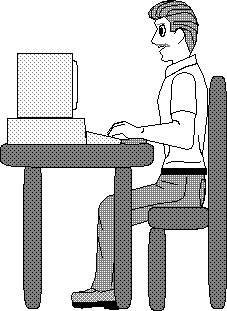
V--Start In the Right Place &
Proceed in the Right Order (SIRP-PRO)
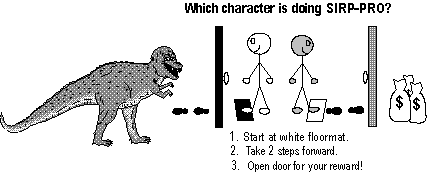
If you begin a new task and
are on the wrong screen, or in the
middle of the previous command, or
perform steps out of order, your
procedure at best won't work and at
worst will cause trouble. In the
diagram, which character is starting in
the right place, proceeding in the right
order, and destined for success? Which
character is doing neither and doomed to
failure, or worse?
|
|
 |
Acronym:
RUFF KCN RTM FI SIRP-PRO
Acrostic: Ruff can read
them fine syrup pro.
|
|

VI--Expect Problems (EP)
Computers work on a simple
principle—using on/off states to
represent data and send messages. But
with millions of switches and components
interconnected in thousands of ways,
problems are inevitable. What’s amazing
is that most of the time, things go
right. But if you expect problems,
you'll be better prepared to cope when
they happen. Instead of getting upset,
treat problems as puzzles to be solved
and challenges to be overcome.
VII--Do
not Blame Your Computer (nBYC)
On rare occasions, hardware
fails. More often, software causes
problems. But by far, most mistakes
are caused by user error. Blaming
the computer without investigating
your own actions is like blaming
your hammer because it missed the
nail and hit your thumb. Realize
that the computer is your tool, you
are in charge, and it does exactly
what you tell it to do (most of the
time!). |
 |
VIII--Do not Panic At
Mistakes (nPAM)
If you panic when you make a
mistake, there’s a good chance you’ll
make things worse. In a panic state,
you're likely to compound the problem by
pressing keys or clicking frantically to
make the problem go away. It's better to
walk away, calm down, and analyze what
happened. Then, go back and methodically
track down and solve the problem.
IX--Change One Setting At A Time (COSAAT)
When troubleshooting, in an
effort to make things right as quickly
as possible, the temptation is to alter
several settings at once. Unfortunately,
if the problem gets solved, you won't
know which setting was responsible, and
you won't know what to "fix" when the
problem recurs. Therefore, discipline
yourself to change only one setting at a
time. With multiple solution attempts,
it's easy to forget what you've already
tried and waste time repeating your
actions, so use your Computer Notebook
to log the date of each change and its
result until you reach the ultimate
solution.
X--Save Often & Back Up Daily
(SO-BUD)
Make it
an automatic habit to save your work
from your computer system's temporary
RAM memory to its permanent disk storage
every few minutes. That way, if you lose
power, you won't have to reenter more
than a few minutes of data. At the end
of a work session, or at least daily,
create a backup copy of your data and
store it safely away from your computer.
If disaster strikes and your original
data is lost, you can restore it from
the backup copy.
|
|
 |
Acronyms:
EP nBYC nPAM COSAAT SO-BUD
Acrostic: EP onBike
enPam co-sat so Bud (could too). |
Click
here to return to the System List
System
Issues
Implementation,
Occupations, Ergonomics, Social Costs
Acronym: SI = IOES (pronounced II-ohz)
Computing involves more than just
software and hardware. People and
society count too!
Implementation
Someday you may be asked to oversee
the implementation (installation) or
upgrade of computers in your office. The
software and hardware decisions you make
will be crucial, but there is an even
greater factor for success. Here is a
three-phase plan you can follow to
ensure success.
I. Experience:
Perform a survey to discover the
following facts:
- What is management' s experience
with computers?
- Do the prospective users have
typing and computer skills?
- Do the users have an unusual
amount of computer phobia or
hostility?
- Will the users welcome or resist
computers or upgrades?
II. Management: Make sure that:
- Top management announces the
decision to automate.
- Top management explains the
reasons for automation.
- Top management describes the
benefits to the users.
- Top management strives to motivate
users.
III. Users: Ensure that:
- Users feel a sense of
"ownership" of the new
computers.
- Users support the decision to
automate or upgrade.
- Users are given a choice of
software/hardware options when
possible.
- Users are thoroughly trained and
provided with ongoing support.
While choosing the right software and
hardware is important, did you observe
that people are the real keys to
successful implementation?
Unfortunately, many employers do not
consider an investment in people to be
as tangible or cost effective as buying
software and hardware.
When involved in an
implementation, your chief job will be
to enlighten management on the benefits
of preparation, involvement, training,
and support!
Occupations
If you
are considering a career in the
lucrative field of computing, you have
many choices. Here is a partial list.
Some career options have overlapping
functions. For example, a Computer
Consultant might write programs,
recommend systems, and train clients.
Even if you don't pursue a computer
career, it's good to know the computer
occupations so you'll know whom to call
when you need help.
Chief Information Officer (CIO)--The
creation of this position has
elevated the importance of
Information as a company asset to
the same level as Finances. The CIO
oversees all information sources and
information flows within a company.Consultant--Independent
contractor who offers computer
services to clients. Data Entry Operator--Enters
names, addresses, numbers, and facts
into a database. Database Manager--Maintains the
structure of a database and the data
stored in it. LAN Specialist--Installs and
maintains Local Area Networks. Librarian--Catalogs, stores, and
retrieves computer tapes/disks. Operator--Operates and controls a
centralized computer. Programmer--Writes instructions
for computer operations. Sales Representative--Matches
computer system to clients' needs. Systems Analyst--Studies, then
recommends ways to improve computer
systems or procedures. Technician--Repairs and maintains
computer systems. Trainer--Trains users to use
computers and programs.
Job
Security
Even if
you don't pursue a computer occupation,
if you continue to upgrade your computer
skills and are motivated to help your
coworkers, you can almost guarantee job
security for yourself. When it comes
time to layoff staff, whom do you think
an employer would most likely keep?
A typical computer user who never
learned to do more than push buttons,
never learned to work more efficiently
on the computer, and had to be helped
whenever something went wrong?
Or, you, an outstanding
computer user, fluent in Computerese,
who understands the fundamentals of how
a computer works, can troubleshoot and
solve computer problems, and is able to
train and assist computer coworkers?
Ergonomics
In
Greek, ergon means
"work." and nomics
means "managing." Ergonomics
(UR-goh-NAW-miks), also known as
"human engineering," is the
science of managing or designing the
workplace--furniture, equipment,
lighting, scheduling--to fit humans
rather than forcing humans to fit the
workplace.
Although ergonomic changes can be
costly, companies are beginning to
realize that comfortable, pain-free
workers are more productive, with less
illness, stress, and absenteeism. New
laws and employee lawsuits have also
hastened ergonomic adoption. Regardless,
here are the chief ergonomic problem
areas and how to minimize or avoid them.
|
|
Computer Vision Syndrome (CVS)
Eyestrain is the number one
complaint of computer users. Close eye
work for long periods of time can cause
blurred vision and dry, itchy eyes.
Improper lighting or personal vision
problems compound the syndrome.
- Take
frequent breaks. At least
15 minutes every 2 hours. Focus on
distant objects so your eye
muscles, which must flex for close
work, will relax.
- Use an adjustable monitor.
Tilt
and swivel the monitor for comfortable
viewing. If possible, position the
screen so you can look slightly down
at it. With your eyelids covering more
of your eyes, they'll have less
tendency to dry out.
- Eliminate reflections.
With
your computer screen off, look
for any bright reflections from
windows or lamps. If possible,
reposition the monitor screen or shade
the light sources to eliminate glare.
Direct overhead lighting or a spot
lamp that shines directly on your
work, but not on your screen, is best.
If you can't eliminate glare, buy an
anti-glare shield approved by the
American Optometric Association, but
be aware that these shields may also
reduce image brightness and sharpness.
- Adjust your computer screen's
brightness, contrast, and position
controls.
Learn how to
adjust the controls for maximum
readability and comfort.
- Take care of your personal
vision needs.
If you are
bothered by bifocals or astigmatism
while working on the computer, see
your eye doctor about getting glasses
designed specifically for computer
work. If you wear contact lenses,
remember to blink often to lubricate
your eyes.
|
Carpal-Tunnel
Syndrome
This is a serious ailment and
is classified as a Repetitive
Stress Injury (RSI). Excessive
typing or improper technique can
inflame the tendons and nerves
that pass through a tunnel of bone
in the wrist. Symptoms vary from
tingling to pain to numbness. In
some cases, rest and a wrist brace
are all that's needed, but severe
cases may require surgery to widen
the tunnel and relieve the
pressure.
|
 |
- Take frequent breaks. At
least 15 minutes every 2 hours.
Stretch
and relax your fingers, hands, and
forearms. Hang them down at your sides
and gently shake them.
- Use a properly elevated wrist
rest or a natural-style keyboard.
Traditional
typists believe your wrists should never
touch anything. Granted, resting your
wrists can be dangerous if it
bends them backwards and narrows the
carpal tunnel. However, a properly-elevated
wrist rest keeps your wrists in
line with your hands, reduces fatigue
from having to hold your wrists up,
and lessens the risk of
Carpal-Tunnel Syndrome. Some of the
newer "natural" keyboards
have built-in wrist rests and are
angled outwards for comfort, but these
take some getting used to, and can
create adjustment problems if you must
regularly switch between keyboard
types.
- Exercise your hands and
fingers.
Squeezing
a rubber ball, for example, will
strengthen your fingers and wrists.
|
Body Pain
Inadequate furniture and
long periods of sitting can lead
to head, neck, back, and other
aches and pains.
- Take
frequent breaks. At
least 15 minutes every 2
hours. Get up and
move around.
Also,
deliberately place some items
you need out of reach so you
are forced to get up
occasionally. Stretch or walk
on your breaks.
Use an adjustable
chair. The
best ones let you alter the
seat angle, back angle,
armrests, and height.
Occasionally change the
chair's position during long
work sessions to give
different muscles a chance to
rest.
Keep yourself in good
physical shape. Prevention
is the best medicine. A
regular program of stretching
and exercise will help prevent
body pain caused by
less-than-ideal workplace
ergonomics.
|
 |
|
Social
Costs of Computing
Lest we
get carried away with the wonders of
computing, we should also consider its
less desirable side effects.
Computer Presumed Infallible
Many
people think that computers are smarter
than humans, that they never make
mistakes. For example, you likely have
never doubted the accuracy of a
calculator. But it is dangerous to blindly
trust the results of a machine,
especially in light of the next item.
|
Garbage
In, Garbage Out (GIGO: GII-goh)
Computers
magnify human effort, good or bad.
When you input good data, you get
great results. But when you input
bad data (garbage), things get really
messed up! When computer
troubles occur and customer
service is interrupted, companies
typically blame the computer. But
in truth, humans, whether they be
programmers or users, are the most
likely cause of
"computer" error. |
 |
|
Dehumanization
Working
with machines all day reduces human
contact. Instead of speaking with a
human bank teller, we use automatic
teller machines. When we call a company
nowadays, more often than not we hear a
computer-recorded voice asking us to
press numbers for further action.
Grocery stores may someday eliminate
human checkers in favor of computerized
self-check-out systems.
Developments like these can make our
lives more efficient, but does it make
them more satisfying? In some areas,
like psychological counseling, it would
seem that computers couldn't replace the
concern and involvement shown by a
human. But dozens of years ago, an
experimental computer counseling program
had patients readily divulging facts
about themselves that they would have
hesitated to reveal to a human
counselor!
Loss of Privacy/Freedom
Credit
bureaus, the IRS, and the banks can all
share information on us--and sometimes
the information is wrong! Financially
solvent people have had credit denied or
revoked. Innocent people have been
jailed over mistaken identity
information gained from a national
computer database. Personal email has
been intercepted and read.
J ob
Displacement
The
computer industry has created as many
new jobs as it has taken away. However,
these new jobs require advanced training
and workers must upgrade their skills or
be left behind.
Digital Divide: Haves vs. Have Nots
Today
it's a disadvantage not to have a
telephone. What will happen to the
have-nots, those who can't afford
computers, when the only way to
communicate, bank, and shop is through a
computer? What educational advantages
and advancement opportunities are
available to kids today who have a home
computer compared to the have-nots who
can't afford one?
Physical Issues
As we
saw in the Ergonomics section, long-term
computer use can lead to physical
ailments. Some scientists are also
concerned about long-term exposure to
low-level radiation emanating from
computer monitors. For the most part
it's considered safe and shielding is
being improved every year, but some
still have reservations.
Energy Consumption
At
about 4 cents/hour, computers don't seem
to use much electricity. But if left on
around the clock that's almost $1/day
($.04x24 hrs = $.96) or about $350/year
per computer. Fortunately, new,
energy-efficient "Green"
computers and peripherals have been
designed to go into "sleep
mode" when not being used, greatly
reducing power consumption.
But
there's no going back!
Despite
the problems computers cause, we will
never return to the precomputer era. Why
not? Because
computers:
Provide
fast service.
In our society we
want everything
"yesterday!"
Are
extremely reliable.
Except for
GIGO, computers rarely go wrong.
Perform
dangerous or tedious jobs.
Computerized robots can disarm
bombs, work with chemicals and
radiation that would endanger a
human, and do mundane assembly line
work.
Store
vast amounts of data in a small
area.
An
entire encyclopedia can fit on a
disk the size of a small plate,
greatly reducing the need for paper
and deforestation. And today it's
possible to forsake having your own
copies of everything and simply
access the most up-to-date
information on the Internet.
Increase
productivity.
Although
computer time can be spent
wastefully by some workers (playing
games, emailing social letters,
surfing the Internet), if we learn
to use the computer efficiently and
effectively, we nearly always get
more work, of a higher quality, done
in less time.

|
Click
here to return to the System List
|
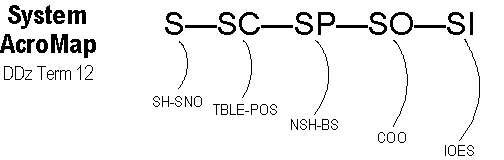
System
AcroMap
Here's the complete System AcroMap.
As usual, draw it over and over until
you can do it from memory.
|
|
 |
Spine
S-CPOI
Write out S--
C-- P-- O--
I, then add an S in front of each
letter of CPOI.
Spine Acrostic
Using S-CPOI, pretend you're
at a luau with your sister. She's
hungry and you spot some poi
(Hawaiian taro root paste) on a
platter, so you say: Sis,
See Poi! |
Click here to
return to the top of the System section
|