|
Peripheral
Peripheral = attached device:
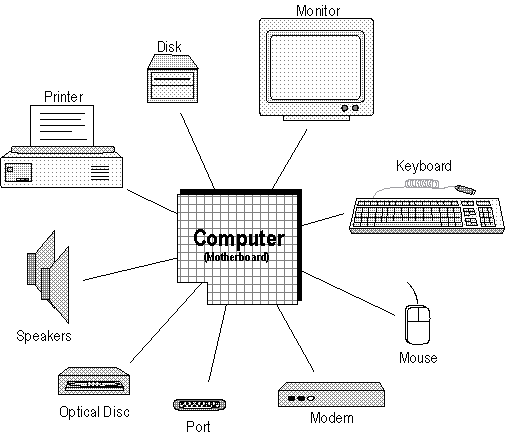
Printer, Disk, Monitor, Keyboard, Mouse, Modem, Port, Optical disc, Speakers.
Acronym--P=ad: PDMonK-MsMoPo-ODSpks
In English, the word peripheral (pur-IF-ur-ul) literally means outside
or around, as in peripheral vision. In Computerese, a peripheral is any device
outside or around a computer that attaches to the motherboard.
|
|

|
Avoid
embarrassment! Do not pronounce peripheral as
pur-IF-ee-ul.
To help you remember the correct pronunciation, train your cat to purr if
your friend Earl comes into the room: Purr if Earl! |
|
 |
|
 Since this is a rather long section, I
decided to give you the complete Peripheral Hardware (PHW) AcroMap first. You'll
soon discover what each acronym means. Observe that after the P=ad:, there are nine
peripherals on the spine and three sets of three ribs. Practice on scratch paper
until you can sketch the entire map perfectly from memory.
|
 |
PHW Spine Acrostic
To memorize the spine of
this AcroMap, imagine you are at your pad (apartment) and two visitors, P.
D. Monk and Ms. Mo Po, arrive with their barking dog, Odee: Pad -- P.D. MonK -- Ms. Mo Po - Od speaks
|
|
Peripheral List
Click
on the desired peripheral to learn about it.
Printer
Disk
Monitor
Keyboard
Mouse
Modem
Port
Optical disc
Speakers
|
Printer
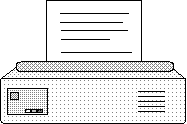
Transfers computer output to paper.
AcroMap: DIL = Dot Matrix, Inkjet,
Laser |
 |
|
Three types of printers are most used with today's computers.
Dot Matrix
How it works: Multiple pins strike an ink ribbon onto paper to make a pattern of
dots that look like characters.
Class: Impact (ink forcibly applied to paper).
Speed: Measured in CPS (characters per second).
Advantages: Can print through multipart forms and carbon paper.
Disadvantages: Noisy. Lower quality than inkjet or laser.
Inkjet
How it works: Sprays electrically-charged droplets of ink, guided by
electromagnets, onto paper to make a pattern of dots that look like characters.
Class: Non-impact (ink gently applied to paper).
Speed: Measured in PPM (pages per minute).
Advantages: Quiet. Near-laser quality at a lower price. Able to print color.
Disadvantage: Slower speed, lower quality than a laser. Ink may bleed (spread)
on some papers.
Laser
How it works: A pulsating laser beam creates
static dots on a rotating drum to make a pattern of dots that look like
characters. Then, similar to a copy machine, dry ink powder clings to the static
dots. Next, paper with the opposite static charge rolls over the drum and
attracts the powder dots. Finally, the paper passes through a heating element
that fuses the powder dots to the paper.
Class: Non-impact (ink gently applied to paper).
Speed: Measured in PPM (pages per minute).
Advantages: Highest speed. Best quality.
Disadvantage: Most expensive, especially if color printer.
|
Printer
Connection
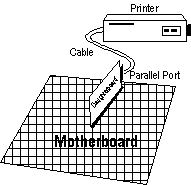
Like all peripheral devices, a printer
must be electronically attached to the motherboard. This is usually done
with a cable plugged into a parallel port daughterboard (See Port).
Click here to return to the peripheral list
|
 |
Disk
Magnetically stores computer
switch settings.
AcroMap: FHC = Floppy, Hard,
Controller. |
 |
|
The surface of a disk platter is coated with magnetic particles. Each
of these particles is a tiny magnet with two poles: South and North. A disk
drive, which is the machine that spins the disk, contains tiny electromagnetic
read/write heads that can change the orientations of disk particles in one
direction or the other to mirror a computer's Off/On switch settings. Since magnetic particles retain
their orientation even when power is off, disk
storage is permanent until deliberately changed or erased.
Read (load, open)
Previously-oriented magnetic disk particles generate an electrical current
in the read/write heads, which signal the computer to reset its switches Off or
On to match.
Write (store, save)
The computer stores RAM switch settings by signaling the read/write heads to
realign magnetic disk particles to match.
|
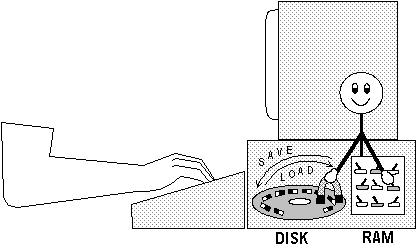
Read: Imagine that a tiny helper
inside your computer looks at the magnetic disk particles and
resets the RAM switches to match
Write: Imagine the tiny helper looks at the RAM switches and magnetizes the disk particles to match.
|
|
|
Important: Saving a file to disk does NOT cause the file to leave RAM--its switch
settings are merely copied to disk. Likewise, loading a file from disk
does NOT cause the file to leave the disk--its switch settings are merely copied
to RAM.
Floppy Diskette
A diskette is a thin, circular piece of plastic coated with magnetic
particles. Diskettes are inserted and removed as needed from diskette drives.
The original diskettes were housed in a softshell casing that you could bend,
hence they were called "floppies." Even with the newer rigid, hardshell
cases, we call them floppies because
inside they still have a thin piece of
plastic. In common usage, it's acceptable to use the
shorter "disk" rather than "diskette."
A Superfloppy, which requires a special
drive, can hold hundreds of times more
bytes than a conventional floppy.
Avoid embarrassment. Do NOT refer to a hardshell floppy disk as a
Hard Disk! The HD embossed on the
diskette stands for "High
Density."
Hard Disk
A hard disk is a metal platter, or a stack of platters, coated with magnetic
particles. Most hard disk platters are permanently housed in a disk
drive, although some hard drives have
removable disk cartridges. Each
platter surface has its own read/write head. Unlike a plastic floppy disk, metal
doesn't stretch at high speeds, therefore, data can be placed much closer
together, and the disk can be spun much faster than on a floppy diskette.
Consequently a hard disk holds more data and works much faster
than a floppy disk.
Hard Drive
Technically, "drive" refers only to the machine that spins the
disk and contains the read/write heads.
The term "disk" refers only to the platter itself. However, in common
usage "drive" and "disk" are used interchangeably. For
example, it's acceptable to say either "hard drive" or "hard
disk."
Is the hard disk part of the computer?
Many people confusedly think so. In early computers the disk drive sat outside
the computer's case and was plugged into it with a cable. As computer
circuitry got smaller, the disk drives were moved inside the computer
case, leading to the mistaken notion that disk drives are part of the computer,
that is, the motherboard.
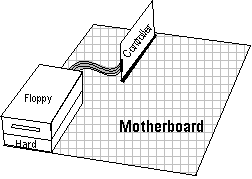
Remember, disk drives are peripheral devices that attach to, but are
not part of the motherboard, as you can see in the next diagram. On the other
hand, disk drives (and all peripherals) are part of a computer system,
which we'll discuss later.
|
Disk Controller
As the name implies, the disk controller
controls the disk drive. It consists
of circuitry with preset switches that hold the control instructions. Controller circuitry may be mounted directly on the disk drive or separately
on a daughterboard. A ribbon-like cable connects the drive to the daughterboard
which in turn plugs into a slot on the motherboard. Most controllers are capable of handling two floppy drives and one hard drive
which is sometimes designated as 2 FD/HD in computer advertisements.
|
|
Click here to return to the peripheral list
Monitor
Displays input from the keyboard and output
from the computer.
AcroMap: VC =Video Card
|
 |
|
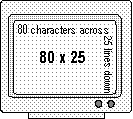
A monitor acts as our "window" into the computer, showing us
what's held in the RAM switches and on disk. When viewing text, a standard
monitor can display 80 characters across by 25 lines down. This explains why
you can't see a whole page of text (about 60 lines) at one time and must scroll
up and down to view it. Some programs let you reduce the view to display more
characters and lines, but they also appear smaller. A larger monitor can
display more items at regular size.
There are two types of monitors most
used with today's computers.
CRT (Cathode Ray Tube)
Looks and works like a TV picture tube. Electron guns shoot beams of electrons
through a shadow mask (a piece of metal full of evenly-spaced holes) to a
phosphor-coated screen which causes dots to glow.
LCD (Liquid Crystal Display)
A flat screen is embedded with a matrix of wires. Where electricity flows
through two crossing wires a liquid crystal substance rotates and creates a
dot. A backlit screen has a light behind it that provides sharper contrasts. An
active matrix screen has a transistor at each junction and displays
sharp, vivid colors. A passive matrix screen, also called dual-scan,
looks dim by comparison. Because of low energy requirements, LCD screens are
used primarily in Notebook computers
where long battery life is desirable.
But desktop models save space, run
cooler, and require less electricity.
Video
Card
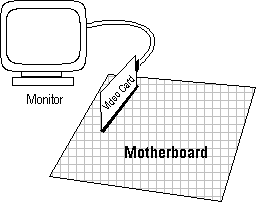
Monitors are
attached to the motherboard via a cable
and a daughterboard called the Video Card
(aka video adapter or video
controller). Monitors have
certain built-in capabilities, but the Video Card determines what is actually
displayed.
|
Pixels
A monitor works by displaying patterns of dots, called pixels (a
contraction of picture elements) that look to us like data.
Resolution
The more pixels that a monitor can display, the better the sharpness or
resolution of the picture. Resolution is defined as the number of pixels across
by the number of pixels down, for
example, 640x480, 800x600,
1024x768. Video Cards are rated by the number of pixels
they can generate.
|
|
Click here to return to the peripheral list
Keyboard
Used to type instructions and data into
RAM.
AcroMap:
FTCN = Function, Typewriter,
Cursor, Numeric |
 |
|
In the earliest computers, switches
were set by hand, one by one. Typing on the keyboard is the modern way to set switches. As you type, the switches in RAM are reset, sending a
corresponding pattern of dots to the screen.
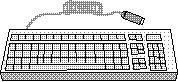
The keyboard can be divided into
four main sections.
Function Key
Contains F-Keys to
activate preprogrammed commands which vary by program.
Typewriter
Laid out in QWERTY (the top left alphabetic keys)
format. Also contains special
non-typing computer keys.
Cursor
Movement
Contains arrow and other keys to move cursor
(aka Insertion Point)
around on screen.
Numeric
Keypad
Contains 10-key numeric keypad for rapid entry by touch.
Combination Keys
With few exceptions,
combination keys do
absolutely nothing alone, but must be combined with a second key. Each
different combination lets you perform a new command from the keyboard,
multiplying the number of possible actions available from the keyboard. For
example: Hold [Shift] and tap [Tab] to tab to the left.
Toggle Keys
A single
toggle key acts like two keys, saving
space on the keyboard. Pressing
a toggle key once sets its feature on or off. Pressing it again reverses the
setting. Example: Tap [Caps Lock] once for uppercase letters. Tap [Caps Lock]
again for lowercase.
Space Character
[Spacebar]--Inserts
ASCII code 32, the "space" character. In most programs, space
characters are invisible to you and me but seen by the computer. We can
"see" a space character only when it exists between two words,
numbers, or symbols. On a blank-looking screen you can tell if there are space
characters (as well as tab codes or return codes) by moving the cursor through
them. You can NOT move the cursor through areas not filled with spaces.
Trap! Use [Spacebar] only to
insert spaces. NEVER use [Spacebar] just to move the cursor because it inserts
space characters that will have to be deleted later.
Tip: When using
proportional fonts where letter widths vary, use [Tab] to separate columns of
words, NOT [Spacebar].
|
Click here to return to the peripheral list
Mouse
Used
to move, draw, and select screen
items.
AcroMap:
PT-PT = Pen, Trackball, Pointing
Stick, TouchPad
BrainAid:
Your pet mouse's name is Putt-Putt. |

|
|
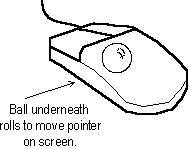
A standard mouse has a rubber or
plastic ball that, when rolled around on
your desk, activates sensors that
transmit the motion to a pointer arrow
on the screen. When the arrow is
pointing at an option on the screen a
click or doubleclick of one of the mouse
buttons located on top of the mouse
activates the option. You can also move
objects around the screen by holding
down the mouse button and rolling
(dragging) the mouse across your desk,
releasing the button (dropping) when the
object is where you want it.
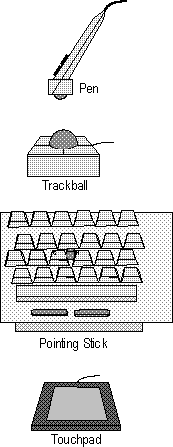
There are four major mouse
variations.
|
Pen
A
mouse shaped like a pen. If it has
a roller ball on the end, it can
be used with a standard mouse pad.
If it has a point on the end, it
is designed to be used with an
electronic drawing pad. A
pen-shaped mouse offers a more
natural grip for drawing.
Trackball
A
stationary upside-down mouse with
its ball on top. You use your
thumb or fingers to roll the ball
and move the pointer. A trackball
doesn't require much desk space
and is commonly built in to
portable computers.
Pointing
Stick (aka
Eraserhead)
It
looks like a pencil eraser located
between the G and H keys on a
keyboard, primarily on portable
computers. When you push the
eraserhead in the desired
direction, the mouse pointer moves
accordingly. It doesn't require
free desk space. Touch typists
like it because you don't have to
remove your hands from the
keyboard. It's equally accessible
to both right- and left-handed
users.
TouchPad
A
touch-sensitive pad, about 3
inches square. Dragging your
finger across the surface causes
the mouse pointer to move. You tap
on the pad to click. It doesn't
require free desk space and is
commonly built into portable
computers.
|

|
|
Mouse
Connections
Dedicated--Some
motherboards have a built-in mouse port.
Serial--Mouse
plugs into an existing serial port (see
Port).
Bus--Mouse comes with and plugs into
its own daughterboard.
|
Click here to return to the peripheral list
Modem
Transmits
files between computers via phone
lines.
AcroMap:
DAD = Digital, Analog, Digital |

|
|
Sometimes it is desirable to transmit
programs and data over long distances.
Perhaps you need to send a report to
your home office while you are
traveling. Maybe you want to send a
message to a friend or relative, or you
need to download a copy of the latest
device driver from the manufacturer.
If computers are located next to one
another, a cable can be strung between
them so they can, with the proper
software, communicate back and forth.
However, most computers are
geographically separated. It would not
be economically feasible or even legally
possible for computer owners to run
wires from their computers to every
other computer that they wanted to
communicate with.
Fortunately, an existing network of
wires can be used to connect computers
all over the world--telephone lines!
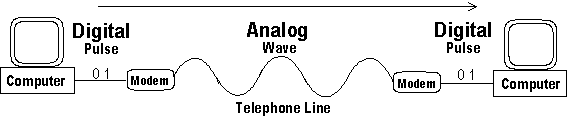
But there's a problem: Computers
transmit in digital pulse form,
whereas the phone lines transmit in
analog (AN-uh-lawg) wave form.
To send data
over phone lines, the digital pulses
must be MOdulated into analog wave
forms. Then on the receiving end, the
analog waves must be DEModulated into
digital pulses. The device that performs
these Digital-Analog-Digital operations
is called a MODEM. A modem is required
on each end of the transmission.
In the following drawing, the
computer on the left sends 01 data
pulses to its modem, which converts them
into waves capable of being carried over
the phone lines. On the receiving end,
the procedure is reversed as the
receiving modem converts the waves back
into identical 01 pulses.
Transmission Speed
Modem speed is measured in
bps (bee-pee-ess) or bits per
second transmitted. Observe the
lowercase "b" for bit. To get
a rough measure of how fast a modem
transmits characters, divide the bps
rate by 10. For example, a 56 kbps modem
transmits 56000 bits per second.
Dividing by 10 yields roughly 5600
bytes. That is, in one second, the modem
can transmit 5600 characters--about
three full screens on an average-sized
monitor.
Fax Modem
This is a modem that also has
fax circuitry built in. With
accompanying software your computer can
act like a fax machine by converting
onscreen data or a scanned-in
document into fax
"picture" form, which can then
be sent to a receiving fax machine or
another fax-modem.
Digital Modem
Digital modems don't have to convert
a computer's digital output into analog
wave form, because they use special
digital or cable TV transmission lines.
They can transmit at much higher speeds
than analog modems.
Modem
Connections
Internal
Modem--Actually a daughterboard that
contains phone line jacks.
External
Modem--Housed in its own box; plugs
into serial (aka COM) port.
|
Click here to return to the peripheral list
Port
Socket
on motherboard or daughterboard.
AcroMap:
S1/P8/U = Serial 1, Parallel 8,
USB |
 |
|
Ports accept cables from a variety of
peripherals. A cable is a bundle of
wires with connectors that plug into
ports. Here are three common port types.
Serial 1
A serial port/cable transmits one bit at a time.
It's slower
than a parallel connection, but reliable over
long distances. Typical uses: modem,
mouse, scanner.
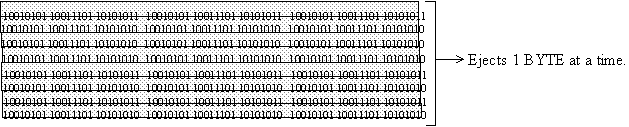
Visualize a single wire with 0 and 1
bits traveling through it. Each group of
eight bits makes a byte, but only one
bit is ejected at a time from the end of
the wire. (An actual serial cable
can have from 9 to 25 wires.)

Parallel 8
A parallel port/cable
transmits one byte at a time. It's
faster than a serial connection, but unreliable over
distances greater than about 25 feet.
Typical uses: disk drive, printer. A bidirectional
parallel port can both send and receive
data which is useful for printer
feedback For example, the printer could
send a message that it's out of paper.
Visualize eight parallel wires each
carrying 0 and 1 bits. Combining bits
across the eight wires ejects one byte
at a time.
(An actual parallel cable can
have 25 wires.)

Universal
Serial Bus
A
USB port is a high-speed alternative to
parallel or serial ports. Whereas most
ports can connect only a single device,
a USB port, with an added hub, can
connect and manage up to 127 devices.
Port
Connectors
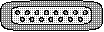
In general, male connectors have pins
or other protrusions.
In general, female connectors have
holes or other indentations.
|
Click here to return to the peripheral list
Optical disc
Holds
programs and data on a compact
disc.
AcroMap:
CD/DVD = Compact Disc, Digital
Video Disc |
 |
|
CD-ROM
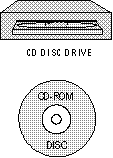
The standard CD is called CD-ROM, an
acronym for Compact Disc-Read
Only Memory. Observe the
"c" in disc to differentiate
it from magnetic disk with a
"k." (Not everyone uses a
"c.") A CD drive rotates a
platter and reads programs and data from
the bottom side (the side without the
label or printing on it). The platter
itself is round, made of plastic, and
coated with a thin metallic layer.
CDs originated in the music world and
provided clear, digital sound. Because
you could not personally record to them,
they were considered
"read-only." When the computer
industry adapted CDs to store programs
and data, they attached the acronym ROM,
which you know means Read-Only Memory.
This was an unfortunate choice because
ROM designates an electronic memory
chip, whereas CD-ROM is used for storage
(like a magnetic disk, except that
CD-ROM is permanent).
|
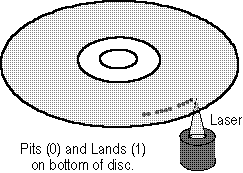
| To
store a 1 bit, a laser beam, under
computer control, burns a pit
into one of the tracks in the
metallic coating on the bottom of
the platter. To store a 0 bit, the
laser does not fire, leaving a land
between pits. Once a CD becomes
pitted it can't be changed, hence
it is "read-only."
To read data, a soft laser
light is shone on the platter
surface. Lands reflect the light,
signaling a 0 bit. Pits scatter
the light, signaling a 1 bit. The
signals are converted into
electrical pulses which reset the
computer's RAM switches to match. |

|
|
X transfer rates
The
base CD-ROM data transfer rate,
designated as 1X, is 150 KB/sec.
A 2X CD-ROM would be 2 x 150 = 300
KB/sec.
A 4X would be 4 x 150 = 600 KB/sec and
so on.
CD-R--A CD-Recordable drive/disc
that can be written to one-time,
primarily to archive large amounts of
data. It may also be called a WORM drive
because it's discs are Write Once,
Read Many.
CD-RW--A CD-Read/Write
drive/disc can record (write), erase,
and re-record (rewrite) its platters.
Instead of making physical pits, it
creates reflective marks that can be
removed by the laser. Speed is
designated with three X rates. For
example: 16x10x40x = 16x write, 10x
rewrite, 40x read.
BrainAid: As it spins, a CD-RW
wrr's. WRR = Write, Rewrite, Read.
CD-ROM vs. Magnetic Disk
- A standard CD-ROM holds 650MB,
much more than a floppy disk but
less than most hard disks.
- CD-ROM transfers data faster than
a floppy drive but slower than most
hard drives.
- A CD-ROM platter costs far less
than an equivalent stack of
diskettes, which is why software
companies prefer to sell you their
massive programs on one
CD-ROM instead of dozens of floppy
disks. And it's much easier for
users to install (copy programs to
the hard disk) from one CD than from
many floppies.
- Unlike magnetic disks, a standard
CD-ROM cannot be saved to or erased.
DVD
Digital Video Disc (or
Digital Versatile Disk) will eventually
replace CD-ROMs. DVD discs use shorter
wavelength lasers that create and read
more densely packed pits, a dual-layered
recording surface, and both sides of the
disc. They can hold up to 17 gigabytes
of data.
DVD-R--Platter can be written to
once.
DVD-RAM--Platter can be read,
written to, and rewritten to.
|
Click here to return to the peripheral list
Speakers
Play
music, voice, sound from the
computer.
AcroMap:
SC = Sound Card |

|
|
Sound Card
Most computers
have a small internal speaker wired to
the motherboard for producing warning
beeps or various sounds. But to hear
full-bodied music and voice from the
computer requires a Sound Card with
attached speakers. A Sound Card
is a daughterboard with circuitry that
processes and amplifies sound files.
DSP (Digital Signal Processor)
Programmable chip on the Sound Card that
relieves the CPU of sound processing
operations.
Speakers come in various forms.
Stereo Speakers
Two speakers on either side of
computer.
Satellite Speakers
In a three-speaker system a larger
subwoofer plays bass sounds; two smaller
speakers (satellites) surround the
subwoofer and play remaining sounds.
Headphones
These tiny speakers fit
on your head.
Tip: You can play music CDs
without a sound card if you plug
headphones (or self-amplified speakers)
directly into the output jack on the
face of the CD drive.
Microphone
Converts voice, music, and other
sounds into electrical signals sent to
the sound card.
|
Click here to return to the peripheral list
Click here to return to the top
of the Peripheral section
|